Your Endpoints Are Running Local AI Agents — Can You See Them?
Learn how Microsoft Defender discovers local AI agents, and how to use Advanced Hunting and KQL to investigate agent usage across users, devices, and the enterprise.
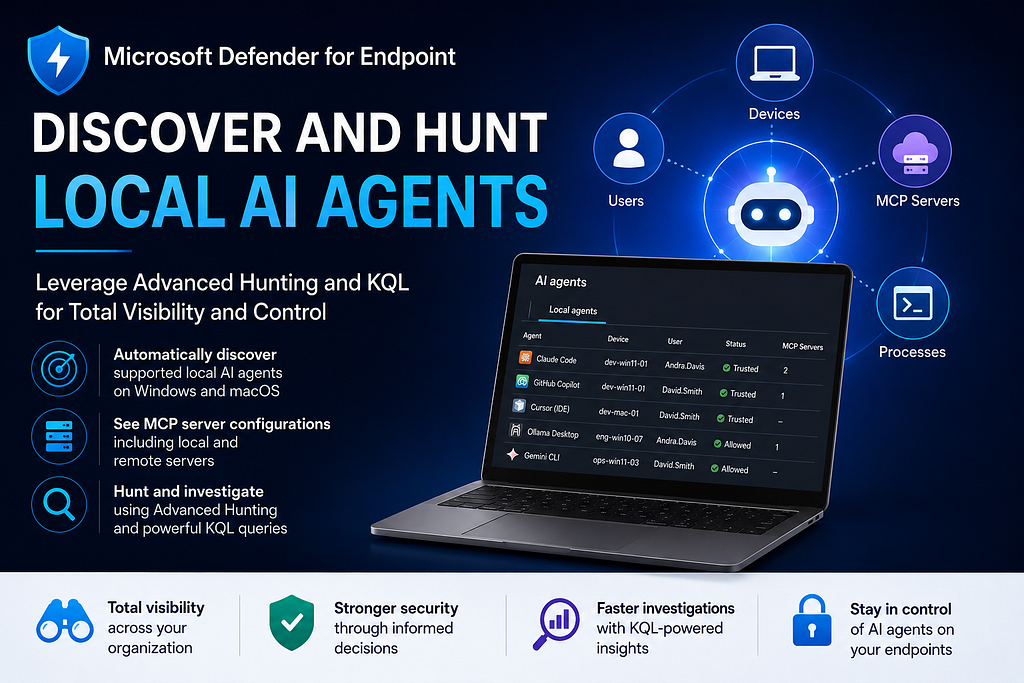
As AI agents rapidly become part of daily workflows, organizations need visibility into where local agents are running, who are using them, and how widely they are deployed across the environment. Unlike cloud-hosted AI services, local AI agents typically execute on endpoint devices and often operate within the security context of the signed-in user. Depending on their configuration, permissions, and enabled tools, these agents may access local files, execute commands, interact with applications, connect to external services, and communicate with Model Context Protocol (MCP) servers to extend their capabilities.
For security teams, understanding the footprint of local AI agents across the enterprise is becoming increasingly important.
Microsoft Defender for Endpoint (MDE) now provides automatic discovery of supported local AI agents on Windows and macOS devices. This includes agents that run from the command line, desktop apps, agentic IDEs, VS Code extensions, and Claw-based local agent implementations. MDE also discovers both local and remote MCP server configurations associated with these agents.
In this blog, we’ll explore how to leverage Advanced Hunting in Microsoft Defender XDR to inventory and hunt for local AI agents across the environment. You’ll learn how to apply KQL-based hunting queries to quickly extract insights such as:
· Which supported local AI agents are deployed across the organization?
· Which users are running local AI agents?
· Which devices are hosting AI agents, and which agents are running on each device?
· Which devices with a certain number of local AI agents running, for example, five or more agents.
· Which agents are linked to a compromised user or device?
· Which agent vendors are most prevalent across the organization?
Supported Local AI Agents and Prerequisites
Before diving into querying local agent data in Advanced Hunting, there are two important points to keep in mind.
First, MDE does not discover every local AI agent currently available. Only supported local AI agents can be inventoried and surfaced through MDE. The currently supported agents are:
• CLI agents: Claude Code, Codex CLI, Gemini CLI, GitHub Copilot CLI, Junie CLI, Kiro CLI, OpenCode, Warp, Antigravity CLI
• Desktop apps: ChatGPT Desktop, Claude Desktop, Codex Desktop, Goose Desktop, Hermes Agent, Ollama Desktop, Perplexity Desktop, Poe Desktop
• Agentic IDEs: Cursor, Devin Desktop (formerly Windsurf), Kiro IDE, Antigravity IDE
• VS Code extensions: Claude Code, Cline, Codex, Gemini Code Assist, GitHub Copilot, Roo Code
• Claw-based agents: OpenClaw, Clawpilot, QClaw, Claw/Nanobot
Also there are some important prerequisites you need to be aware of, such as:
· The endpoint devices need to be onboarded to Defender for Endpoint.
· Microsoft Defender Antivirus is running in active mode.
· The environment is running in the commercial cloud. Sovereign and national cloud environments are currently unsupported.
Viewing Local AI Agents in Defender XDR Portal
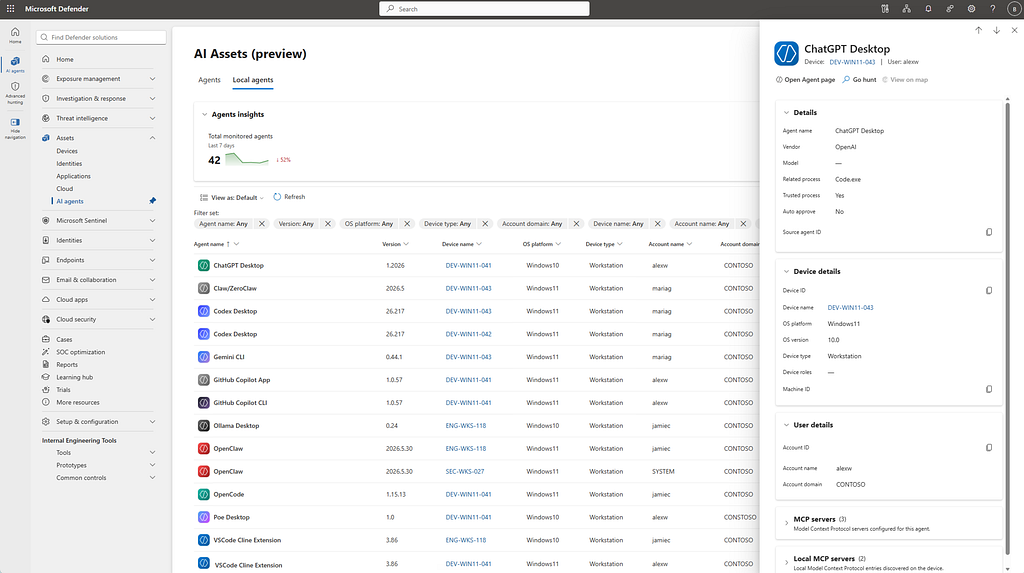
To explore local AI agents in the Defender XDR portal, you can start with the built-in inventory dashboard by navigating to Assets → AI Agents → Local Agents.
The local agent inventory in the portal provides a centralized view of discovered local AI agents across onboarded devices.
As shown in the next screenshot, for each discovered agent, Defender displays information such as:
· Agent name and version
· Associated process
· Device and user information
· First-seen timestamps
· Integrity level
· MCP server configurations (when detected)
Exploring Local AI Agents with Advanced Hunting
While the portal provides an excellent operational view, Advanced Hunting offers more reporting, investigation, and hunting capabilities, enabling you to quickly filter, correlate, and summarize AI agent data across your environment with greater flexibility.
At the data layer, Defender XDR exposes all AI agent inventory data through the AIAgentsInfo Advanced Hunting event (schema) table. In addition to local AI agents, this table includes telemetry from various other AI agent platforms, such as:
· Microsoft Copilot Studio
· Azure AI Foundry
· Amazon Bedrock
· Google Vertex AI
For example, the following KQL query identifies published AI agents where the creator information is also available:
AIAgentsInfo
| where AgentStatus == "Published"
| where isnotempty(CreatorAccountUpn)
| summarize by AIAgentName, Platform, CreatorAccountUpn
| sort by AIAgentName asc
In this fictitious organization, as seen in the screenshot below, the query returned more than 400 published AI agents.
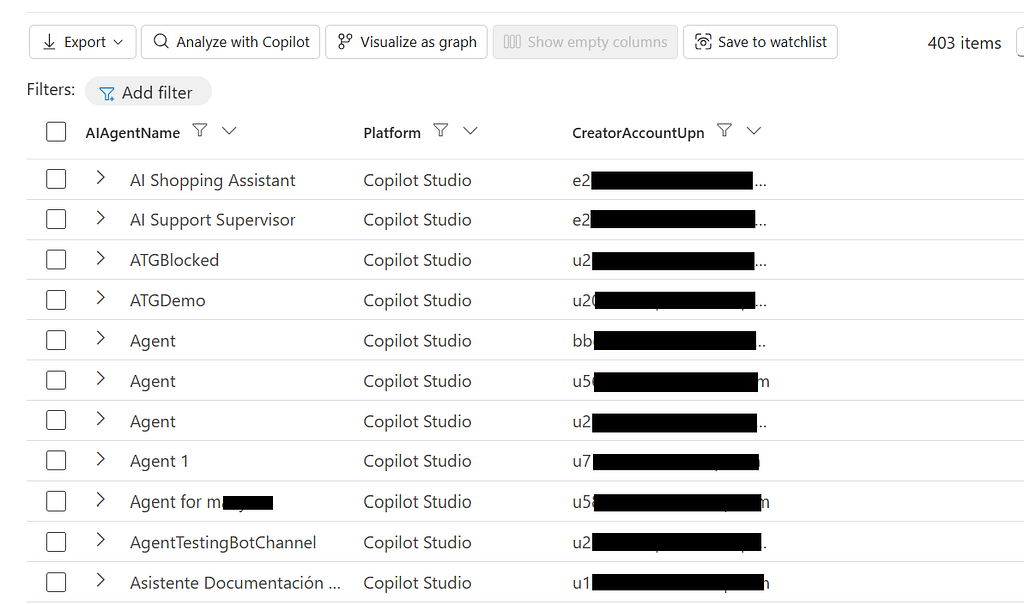
Note, removing the AgentStatus == “Published” filter will also surface agents that were created or agents that have since been deleted.
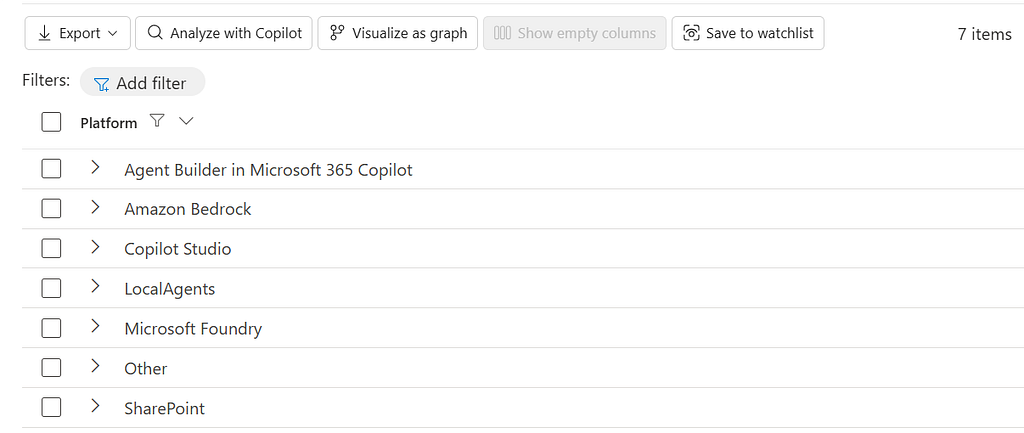
If you run the following KQL query to check where agents are originating from, you will notice LocalAgents is listed in the query result shown below, along with agents from Copilot Studio, Microsoft Foundry, Amazon Bedrock and more.
AIAgentsInfo
| summarize by Platform
| sort by Platform asc
Now let’s take a closer look at local AI agents. The following query retrieves detailed information about local AI agents discovered in the organization, with the time range set to the last 30 days in Advanced Hunting:
AIAgentsInfo
| where Platform == "LocalAgents"
| extend ParsedAgentData = parse_json(RawAgentInfo)
| extend
AllowedStatus = tostring(ParsedAgentData.allowedStatus),
ImpactedSettings = tostring(ParsedAgentData. impactedSettings),
AppType = tostring(ParsedAgentData. appType),
AvailableInStore = tostring(ParsedAgentData.availableInStore),
IngestionDate = tostring(ParsedAgentData.ingestionDate),
LastUpdateDate = tostring(ParsedAgentData.lastUpdateDate),
PublishedStatus = tostring(ParsedAgentData.publishedStatus),
AgentFeatures = tostring(ParsedAgentData.agentFeatures),
BlockStatus = tostring(ParsedAgentData.blockStatus),
Scope = tostring(ParsedAgentData.scope),
Vendor = tostring(ParsedAgentData.localAgentMetadata.vendor),
DeviceName = tostring(ParsedAgentData.localAgentMetadata.deviceName),
AccountName = tostring(ParsedAgentData.localAgentMetadata.accountName),
AccountSid = tostring(ParsedAgentData.localAgentMetadata.accountSid),
AccountDomain = tostring(ParsedAgentData.localAgentMetadata.accountDomain),
RelatedProcess = tostring(ParsedAgentData.localAgentMetadata.relatedProcess),
TrustedProcess = tostring(ParsedAgentData.localAgentMetadata.trustedProcess),
OSPlatform = tostring(ParsedAgentData.localAgentMetadata.osPlatform),
OSVersion = tostring(ParsedAgentData.localAgentMetadata.osVersion),
DeviceType = tostring(ParsedAgentData.localAgentMetadata.deviceType)
| project Timestamp, AIAgentName, PublishedStatus, AccountName, AccountDomain, Vendor,  DeviceName, OSPlatform, OSVersion, DeviceType, IsBlocked, BlockStatus, AgentCreationTime, IngestionDate, LastUpdateDate, Scope, AllowedStatus, RelatedProcess, TrustedProcess, ImpactedSettings, AgentFeatures, AppType, AvailableInStore, AIAgentId, AccountSid
| sort by Timestamp, Vendor asc, AIAgentName asc
The screenshot below displays a portion of the query results.

Then the following screenshot displays the details of one agent from the query results.
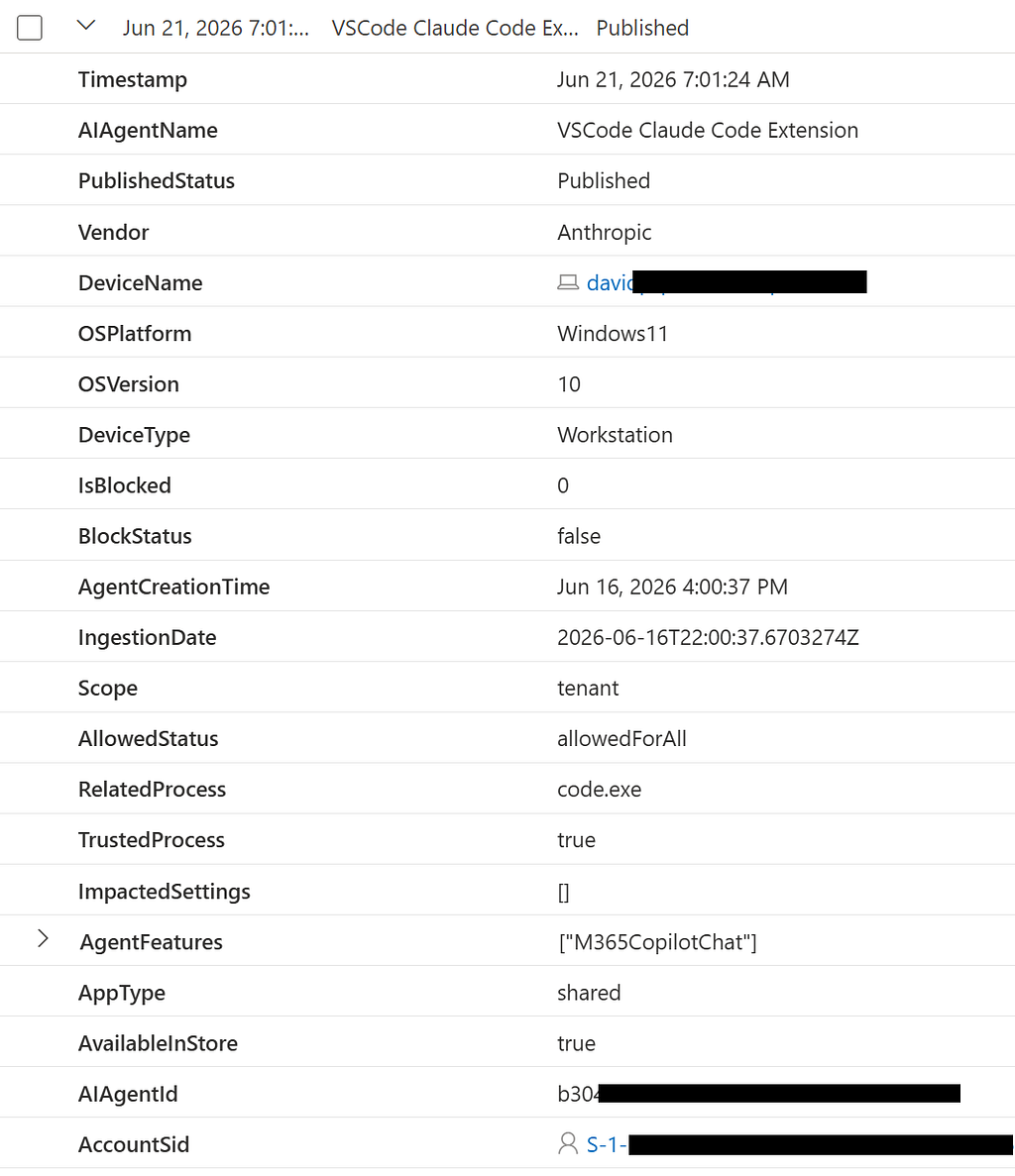
From this screenshot, you can see that this particular local AI agent is a Claude Code extension running inside Visual Studio Code. Various key security insights are available:
Device Information: The query exposed the device name, operating system, and device type where the agent was discovered.
PublishedStatus: This field indicated the agent’s publishing status. In this case, the agent had been published.
Vendor: The vendor was identified as Anthropic.
IsBlocked / BlockStatus: Both fields indicated that this agent was not blocked. (Note, either field can be used in a new KQL query to identify blocked agents in the future.)
AgentCreationTime / IngestionDate: For this specific agent, it was created and also ingested on June 16th.
Scope: The agent was configured at tenant-wide scope rather than a more limited scope.
AllowedStatus: The value allowedForAll indicated the agent was permitted for all according to the current policy configuration.
RelatedProcess: The related process was shown as code.exe, indicating the agent was running within Visual Studio Code (code.exe).
TrustedProcess: The value true indicated Defender considered the hosting process (code.exe) trustworthy.
AvailableInStore: The value true indicated the agent was available through an approved marketplace or store.
Notice that user information is not shown for this specific agent. However, the user’s SID information is still available in the query results. As seen in an earlier screen capture, user account details such as account name, domain, and security identifier (SID) are frequently captured, indicating an association between the agent and the user account.
Understanding Inventory Snapshots
It is important to note that the query results return repeated snapshots of the same agent over time. This is because the AIAgentsInfo table contains periodic inventory snapshots rather than one-time installation events. To list only the most recent record for each agent, you can add the following filter to the previous KQL query:
| summarize arg_max(Timestamp, *) by AIAgentId
This update removes duplicate records and provides a current-state inventory view. For your reference, here is the updated query:
AIAgentsInfo
| where Platform == "LocalAgents"
| summarize arg_max(Timestamp, *) by AIAgentId
| extend ParsedAgentData = parse_json(RawAgentInfo)
| extend
AllowedStatus = tostring(ParsedAgentData.allowedStatus),
ImpactedSettings = tostring(ParsedAgentData. impactedSettings),
AppType = tostring(ParsedAgentData. appType),
AvailableInStore = tostring(ParsedAgentData.availableInStore),
IngestionDate = tostring(ParsedAgentData.ingestionDate),
LastUpdateDate = tostring(ParsedAgentData.lastUpdateDate),
PublishedStatus = tostring(ParsedAgentData.publishedStatus),
AgentFeatures = tostring(ParsedAgentData.agentFeatures),
BlockStatus = tostring(ParsedAgentData.blockStatus),
Scope = tostring(ParsedAgentData.scope),
Vendor = tostring(ParsedAgentData.localAgentMetadata.vendor),
DeviceName = tostring(ParsedAgentData.localAgentMetadata.deviceName),
AccountName = tostring(ParsedAgentData.localAgentMetadata.accountName),
AccountSid = tostring(ParsedAgentData.localAgentMetadata.accountSid),
AccountDomain = tostring(ParsedAgentData.localAgentMetadata.accountDomain),
RelatedProcess = tostring(ParsedAgentData.localAgentMetadata.relatedProcess),
TrustedProcess = tostring(ParsedAgentData.localAgentMetadata.trustedProcess),
OSPlatform = tostring(ParsedAgentData.localAgentMetadata.osPlatform),
OSVersion = tostring(ParsedAgentData.localAgentMetadata.osVersion),
DeviceType = tostring(ParsedAgentData.localAgentMetadata.deviceType)
| project Timestamp, AIAgentName, PublishedStatus, AccountName, AccountDomain, Vendor,  DeviceName, OSPlatform, OSVersion, DeviceType, IsBlocked, BlockStatus, AgentCreationTime, IngestionDate, LastUpdateDate, Scope, AllowedStatus, RelatedProcess, TrustedProcess, ImpactedSettings, AgentFeatures, AppType, AvailableInStore, AIAgentId, AccountSid
| sort by Timestamp, Vendor asc, AIAgentName asc
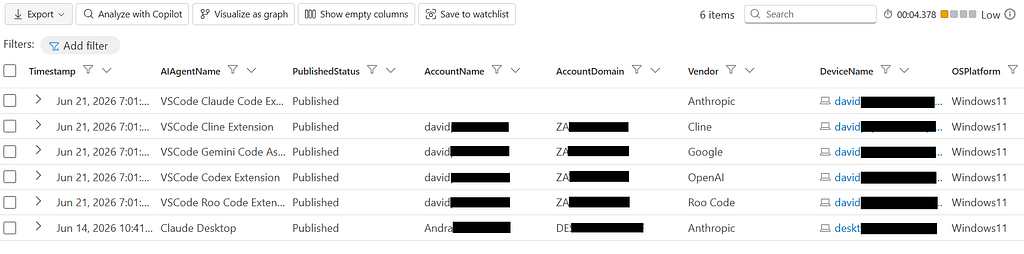
The results from the updated query are shown in the screenshot below, where now there are only six items in the output. These represent the most recent records for local AI agents observed in the environment.
Identifying Most Prevalent AI Agent Vendors
With visibility into local AI agents deployed across the environment, the following query allows you to quickly assess which AI agent vendors are in use and identify the vendors with the largest presence across the organization.
AIAgentsInfo
| where Platform == "LocalAgents"
| summarize arg_max(Timestamp, *) by AIAgentId
| extend ParsedAgentData = parse_json(RawAgentInfo)
| extend Vendor = tostring(ParsedAgentData.localAgentMetadata.vendor)
| summarize VendorCount = count() by Vendor
| sort by VendorCount desc
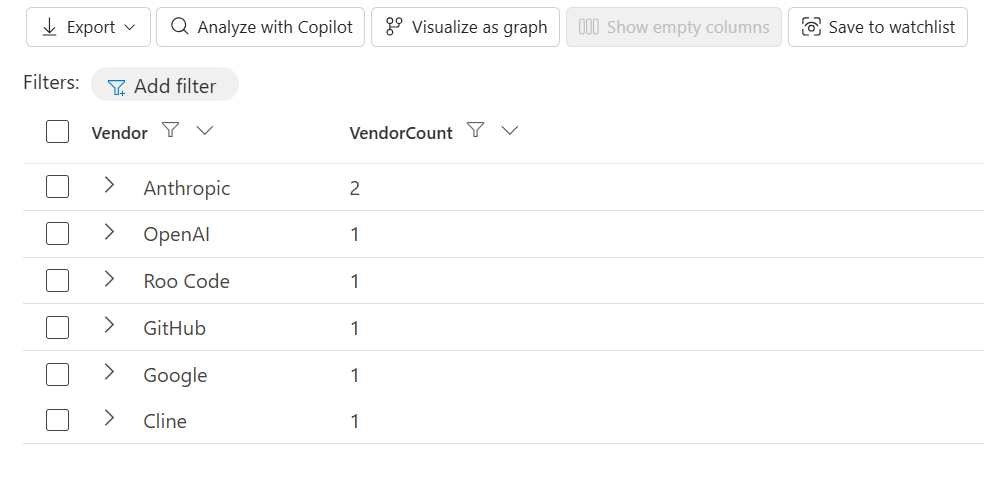
For reference, a sample output from the query is shown in the screenshot below.
Finding Devices with Multiple AI Agents
From a security and governance perspective, it can be useful to identify which devices are running many local AI agents.
The following query lists all the endpoint devices which are hosting local AI agents and ranks them by agent count, making it easy to spot systems with the highest concentration of agents. It also provides a detailed inventory of the agents running on each device, including the agent name, publishing status, and agent ID.
AIAgentsInfo
| where Platform == "LocalAgents"
| summarize arg_max(Timestamp, *) by AIAgentId
| extend ParsedAgentData = parse_json(RawAgentInfo)
| extend
    PublishedStatus = tostring(ParsedAgentData.publishedStatus),
    DeviceName = tostring(ParsedAgentData.localAgentMetadata.deviceName)
| summarize
    TotalAgentsOnDevice = count(),
    AgentsList = make_list(bag_pack(
        "AIAgentName", AIAgentName,
        "PublishedStatus", PublishedStatus,
         "AIAgentId", AIAgentId
    ))
    by DeviceName
| sort by TotalAgentsOnDevice desc
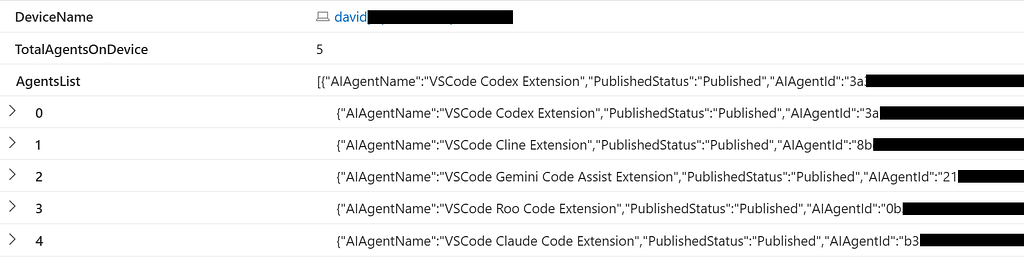
The query results, shown in the next screen capture, indicate that local AI agents were observed on two devices, with one endpoint hosting five agents.

In the same query results, you can expand on the device hosting five agents to view details about each agent, as shown in the next screenshot.
You can further refine the query by modifying the last line to return only devices hosting at least a specified number of local AI agents. For example, the following query is configured to display devices with five or more agents.
AIAgentsInfo
| where Platform == "LocalAgents"
| summarize arg_max(Timestamp, *) by AIAgentId
| extend ParsedAgentData = parse_json(RawAgentInfo)
| extend
    PublishedStatus = tostring(ParsedAgentData.publishedStatus),
    DeviceName = tostring(ParsedAgentData.localAgentMetadata.deviceName)
| summarize
    TotalAgentsOnDevice = count(),
    AgentsList = make_list(bag_pack(
        "AIAgentName", AIAgentName,
        "PublishedStatus", PublishedStatus,
         "AIAgentId", AIAgentId
    ))
    by DeviceName
| where TotalAgentsOnDevice >= 5
The query results are shown below, identifying a single device in the environment with five or more local AI agents.

Finding Users Running Multiple AI Agents
Security teams may also want to understand which users are associated with which local AI agents.
The following query groups local AI agents by account name and returns key details for each user, including:
· Total agent count per user
· Agent name for each agent
· Publishing status for each agent
· Associated device
· Agent IDs
AIAgentsInfo
| where Platform == "LocalAgents"
| summarize arg_max(Timestamp, *) by AIAgentId
| extend ParsedAgentData = parse_json(RawAgentInfo)
| extend
    PublishedStatus = tostring(ParsedAgentData.publishedStatus),
    DeviceName = tostring(ParsedAgentData.localAgentMetadata.deviceName),
    AccountName = tostring(ParsedAgentData.localAgentMetadata.accountName)
| summarize
    TotalAgentsWithUser = count(),
    AgentsList = make_list(bag_pack(
        "AIAgentName", AIAgentName,
        "PublishedStatus", PublishedStatus,
        "DeviceName", DeviceName,
         "AIAgentId", AIAgentId
    ))
    by AccountName
| sort by AccountName asc
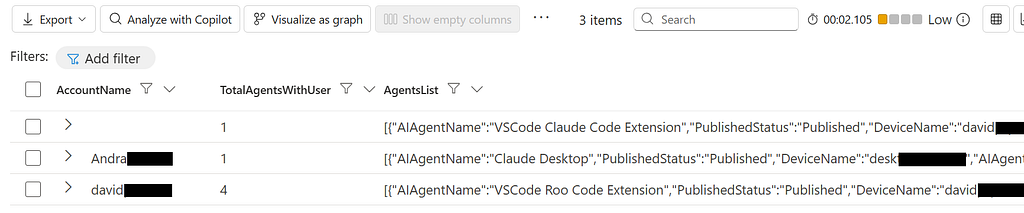
As shown in the following screenshot, the query results indicate that one agent is associated with Andra and four agents with David. One additional agent is not linked to any user account.
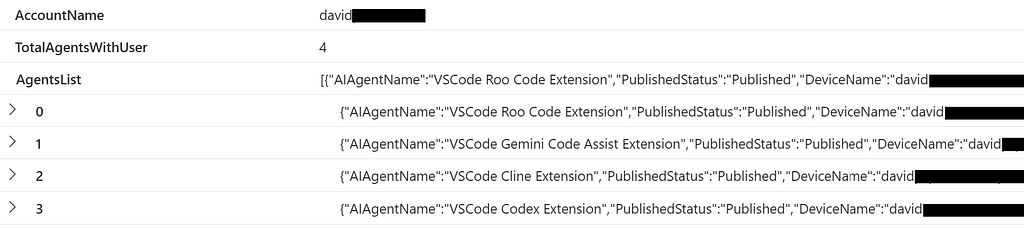
Again you can expand the user entry to view details of each agent associated with that user, as shown next.
Similar to the device queries discussed previously, you can sort users by the number of associated agents, or filter to display only users with five or more agents.
Why SID-Based Hunting Is Often Better
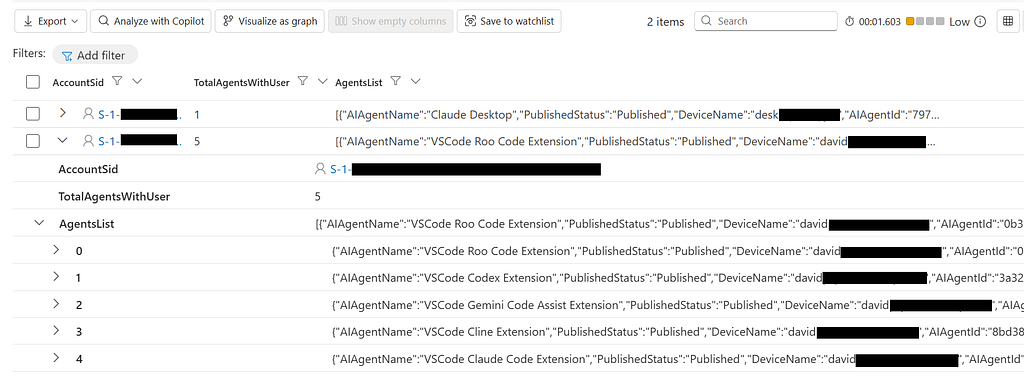
One thing to note is that account names are sometimes not populated, while SIDs are often still available. For this reason, SID-based hunting may be more reliable, even though searching by user account name is typically easier.
The following query groups AI agents by account SID:
AIAgentsInfo
| where Platform == "LocalAgents"
| summarize arg_max(Timestamp, *) by AIAgentId
| extend ParsedAgentData = parse_json(RawAgentInfo)
| extend
    PublishedStatus = tostring(ParsedAgentData.publishedStatus),
    DeviceName = tostring(ParsedAgentData.localAgentMetadata.deviceName),
    AccountName = tostring(ParsedAgentData.localAgentMetadata.accountName),
    AccountSid = tostring(ParsedAgentData.localAgentMetadata.accountSid)
| summarize
    TotalAgentsWithUser = count(),
    AgentsList = make_list(bag_pack(
        "AIAgentName", AIAgentName,
        "PublishedStatus", PublishedStatus,
        "DeviceName", DeviceName,
         "AIAgentId", AIAgentId
    ))
    by AccountSid
| sort by AccountSid asc
This approach allows investigators to track AI agent usage even when account names are unavailable. As seen from the query results below, the agent that is not linked to any account name, is associated with the same SID as David.
Incident Response Use Cases
The real value of AI agent inventory becomes apparent during incident response. When investigating a compromised user account or infected device, analysts can quickly identify which agents are running on the affected device, as well as which agents are associated with the compromised user account.
For example, to identify all AI agents associated with a compromised user, David Smith, you can add the following line to the KQL query that lists agents by account name.
| where AccountName contains “davidsmith”
For your reference, here is the updated query:
AIAgentsInfo
| where Platform == "LocalAgents"
| summarize arg_max(Timestamp, *) by AIAgentId
| extend ParsedAgentData = parse_json(RawAgentInfo)
| extend
    PublishedStatus = tostring(ParsedAgentData.publishedStatus),
    DeviceName = tostring(ParsedAgentData.localAgentMetadata.deviceName),
    AccountName = tostring(ParsedAgentData.localAgentMetadata.accountName)
| where AccountName contains "davidsmith"
| summarize
    TotalAgentsWithUser = count(),
    AgentsList = make_list(bag_pack(
        "AIAgentName", AIAgentName,
        "PublishedStatus", PublishedStatus,
        "DeviceName", DeviceName,
         "AIAgentId", AIAgentId
    ))
    by AccountName
| sort by AccountName asc
This narrows results to local AI agents associated with David Smith, as illustrated below.

Similarly, analysts can update this KQL query to filter based on device name or Account SID.
Upcoming Schema Change
Lastly, there is one important update you need to be aware of: Microsoft is renaming the AIAgentsInfo table to AgentsInfo.
For most organizations, this transition will be seamless:
· Saved Defender Advanced Hunting queries will be automatically updated
· Custom detection rules that rely on saved queries will continue to work as expected
· No manual changes are required within Defender XDR
However, you will need to update the queries that are run using the API.
The AIAgentsInfo table will remain available until July 1, 2026.
Your Endpoints Are Running Local AI Agents — Can You See Them? was originally published in Detect FYI on Medium, where people are continuing the conversation by highlighting and responding to this story.
Introduction to Malware Binary Triage (IMBT) Course
Looking to level up your skills? Get 10% off using coupon code: MWNEWS10 for any flavor.
Enroll Now and Save 10%: Coupon Code MWNEWS10
Note: Affiliate link – your enrollment helps support this platform at no extra cost to you.
Article Link: https://detect.fyi/your-endpoints-are-running-local-ai-agents-can-you-see-them-338c773f4397?source=rss----d5fd8f494f6a---4
1 post - 1 participant
Malware Analysis, News and Indicators - Latest topics

Sp123
"An underestimated security threat to organizations is employee apathy and burn out."
